pl8ypus
Systems / TargetSize AI Build

Build Story / Windows Desktop Utility

TargetSize

A Windows desktop video compressor that uses FFmpeg and a deterministic, rule-based planner to compress a video towards a specified target file size. AI helped build the software. The compression logic itself is not machine learning.

Working desktop build .NET 8 WPF FFmpeg MVVM PowerShell setup scripts

Greg's take

TargetSize was my first serious build using Cursor. Up to this point I had mostly been working with Claude and Codex, so I deliberately picked a practical desktop app instead of another web build. Different stack, different workflow, fewer comfortable shortcuts.

The objective was not simply to wrap FFmpeg. That bit has been done. I wanted to know whether modern AI development tools could help me build a polished Windows application I would genuinely use: inspect the source, calculate sane settings, run the compression, report progress, handle setup issues, and fail visibly when something goes wrong.

Claude helped with planning, architecture and red-team thinking. Codex helped with implementation support, validation and technical problem solving. Cursor became the engineering environment where the app actually came together, mainly because it could work across the whole codebase while still leaving the technical decisions with me.

That mattered more than I expected. I still owned the design decisions, testing, debugging and final acceptance, but the way I built changed. TargetSize was the point where AI-assisted engineering stopped feeling like an experiment and became my default way of building software.

Planning and red-team

The useful part was the adviser layer, not compression itself.

Original problem

Shrink a video for a target upload or file-size limit without manually guessing codec, resolution, bitrate, and preset settings.

Framing change

The early "AI Video Compressor" idea was dropped. The final product uses a rule-based CompressionPlanner, not ML, because target bitrate can be calculated from size and duration.

Risk review

HandBrake already does target-size compression. Aggressive targets are not always quality-safe. H.264 and H.265 have licensing considerations for resale, and bundling FFmpeg can trigger SmartScreen without code signing.

Architecture decisions

Windows-first WPF on .NET 8, plain exe output, MVVM, bundled FFmpeg and ffprobe in a tools folder, startup dependency checks, orphan process cleanup, cancellation, disk-space pre-flight, temp cleanup, and output re-probing.

FFmpeg was the compression engine. The project references Windows FFmpeg builds from Gyan.dev as the setup source or manual fallback, without implying that Gyan.dev built TargetSize.

Build timeline

Planning to foundation to compression logic to interface to final working build.

Step 1

Scaffold

Built the .NET 8 WPF WinExe project, core folders, MVVM base types, blank window, FFmpeg locator, process manager, and missing-tools startup check.

Decision: plain exe and bundled tools folder. Lesson: the machine first needed the .NET 8 SDK and the generated project had to be flattened.

Step 2

Probing service

Added ffprobe metadata extraction, JSON parsing, no-video-stream rejection, VFR detection, test project, and probe harness.

Decision: separate process I/O from parsing for unit tests. Lesson: nested test and harness sources needed explicit compile excludes.

Step 3

Compression planner

Built the CompressionPlanner, priority modes, bitrate-floor table, source-bitrate cap, resolution ladder, and unit tests.

Decision: calculate bitrate from target MB and duration, then apply documented thresholds. Lesson: even-aligned downscale expectations mattered in tests.

Step 4

FFmpeg encode service

Replaced the stub with EncodeService, FFmpeg argument building, progress parsing, disk guard, two-pass encoding, cleanup, corrective pass, validation, and logs.

Decision: keep the encode service UI-agnostic. Lesson: cancellation returns a clear result and deletes partial output.

Step 5

Sample-clip pre-test

Added sample timing, sample encoding, bitrate adjustment, resolution step-down behaviour, predicted final size, and quality notes.

Decision: make the pre-test optional and skip it for short sources with a clear reason. Lesson: some test cases hit audio-alone limits before planner floors.

Step 6

UI

Built the WPF workflow: drag and drop, file picker, target MB, priority radios, Compress, Cancel, progress, confirmation, results, output paths, settings, and VFR warning.

Decision: thin code-behind only for browse and drop. Lesson: bad TextBlock Run bindings could crash the first UI launch.

Step 7

Edge-case hardening

Added invalid-media rejection, portrait short-edge floors, impossible-target blocking, source-bitrate warnings, disk estimate fixes, pass-log cleanup, network-file notes, and broader orphan sweeps.

Decision: warn and block impossible targets instead of producing broken output. Lesson: portrait video should be judged by short edge.

Step 8

Start menu integration

Added the app icon, project icon wiring, and a PowerShell script that builds Release and creates a Start menu shortcut with the exe folder as WorkingDirectory.

Decision: no installer or MSIX. Lesson: the first script had smart quotes that PowerShell would not parse.

Step 9

FFmpeg setup script

Built setup-ffmpeg.ps1 to provision ffmpeg.exe and ffprobe.exe into tools, with skip, force, 7-Zip, GitHub mirror, temp cleanup, and fallback messaging.

Decision: automate the tools folder. Lesson: assumed zip URLs and non-ASCII punctuation both needed correcting.
Troubleshooting

The silent startup failure made the app better.

Symptom

Double-clicking TargetSize.exe or using the Start menu shortcut appeared to do nothing. No window. No visible error dialog.

Investigation

The shortcut and FFmpeg setup were checked and ruled out. The crash happened during mainWindow.Show before any useful UI appeared.

Root cause

ProgressBar.Value was bound to the read-only MainViewModel.ProgressPercent property. WPF RangeBase.Value defaults to TwoWay binding, which threw an InvalidOperationException at startup.

Fix

The binding became Mode=OneWay. Global startup and unhandled exception handlers now log full details to logs/startup-error.log and show a MessageBox.

Lesson

Desktop apps need visible failure paths. A WinExe without startup logging can make a normal binding bug look like nothing happened.

Real compression comparison

A practical comparison of the original file and the compressed TargetSize output.

The right-hand player uses a browser-compatible H.264 preview so the visual result can be inspected inline. The file details and output link still refer to the genuine HEVC file produced by TargetSize.

TargetSize output

smylex.5mb.mp4

4.24 MB, 30.003 seconds, 1280 x 720, HEVC / H.265

Browser-compatible preview

The embedded player uses an H.264 preview for browser compatibility. The file details and download link refer to the genuine 4.24 MB HEVC output produced by TargetSize.

Reduction

8.25 MB

Percentage

66.05%

Target output

The compressed result lands around 4 MB, based on the real file in the videos folder.

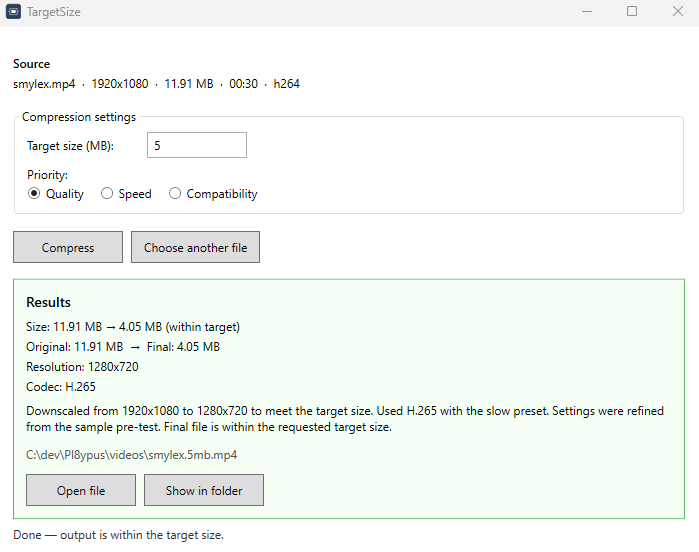
Product screenshot

The actual TargetSize desktop interface.

TargetSize Windows desktop application showing video compression controls and result information
TargetSize after the desktop workflow had been wired: source selection, target size, priority, progress, prediction, and result controls visible in the WPF application.

Claude and Codex

AI helped with the build process. Greg kept the steering wheel.

Planning and critique

The concept was red-teamed before implementation, including market overlap, quality physics, dependency risks, codec considerations, and distribution friction.

Implementation and fixes

Codex-style implementation work moved through scaffold, services, planner, encode flow, tests, UI, scripts, and the silent-startup fix documented in the build story.

Human acceptance

Greg directed the problem, accepted the architecture, tested the app, verified launch paths, and kept the final product rule-based rather than overclaiming AI inside compression.

Useful software, built in public enough to learn from.

TargetSize is a small Windows utility, but the build story shows the whole engineering arc: plan, red-team, implement, test, trip over reality, fix the actual cause, and keep the claims honest.

View all systems